

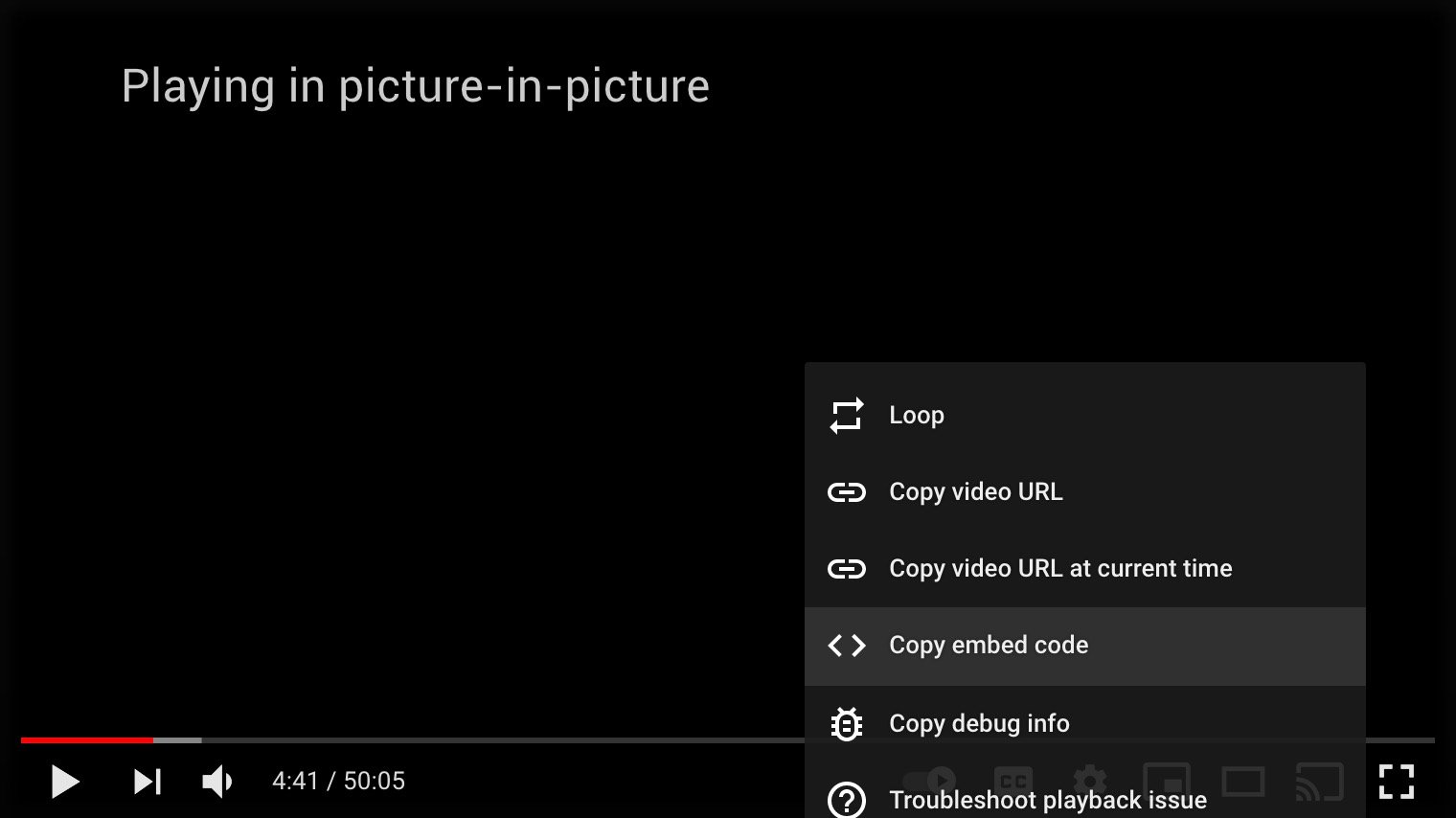
YouTube is a great way to embed videos on a website, and the embed code is easy to get. Right-click the video you want to embed and choose “Copy embed code” from the menu. Paste the code into your HTML and BAM! Your video is on the page.
The video might look great on your desktop screen, but the embed code has a fixed width and height (for example 708 × 398 pixels). On smaller screens it can overflow the page, and if you only stretch it to full width, you get black bars above and below the video. How do you fix this?
Make a YouTube Video Responsive for All Screen Sizes
Wrap the iframe you embedded in a <div class="video-embed">. Replace VIDEO_ID with the ID of your video.
HTML
<div class="video-embed">
  <iframe width="708" height="398" src="https://www.youtube.com/embed/VIDEO_ID" title="YouTube video player" allow="accelerometer; autoplay; clipboard-write; encrypted-media; gyroscope; picture-in-picture; web-share" referrerpolicy="strict-origin-when-cross-origin" allowfullscreen></iframe>
</div>
CSS
Copy the code below and paste it into your CSS file.
.video-embed iframe {
    display: block;
    width: 100%;
    height: auto;
    aspect-ratio: 16 / 9;
    border: 0;
}
The aspect-ratio property keeps the player in exactly the same proportions as the video at any width, so the box always fits the picture. Most YouTube videos are 16:9; for a 4:3 video use 4 / 3, and for a vertical Short use 9 / 16.
Need to support very old browsers that don’t understand aspect-ratio? Use the classic padding trick instead. 56.25% is 9 ÷ 16, the height of a 16:9 video as a percentage of its width:
.video-embed {
    position: relative;
    height: 0;
    padding-bottom: 56.25%; /* 9 / 16 = 0.5625 */
}
.video-embed iframe {
    position: absolute;
    top: 0;
    left: 0;
    width: 100%;
    height: 100%;
    border: 0;
}
Note: CSS can only remove black bars caused by a player box with the wrong shape. If the bars are part of the video file itself, you need to crop the video. And if you use the YouTube block in the WordPress editor, it already does this for you on themes that support responsive embeds. Enjoy coding!